Operations
Small Business Backup and Disaster Recovery Checklist: Recover Without Panic
A practical backup and disaster recovery checklist for small businesses — critical systems, ransomware-resistant backups, restore testing, RPO/RTO in plain English, documentation, and business continuity.
- Backups
- Disaster Recovery
- Small Business
- IT Operations
- Business Continuity
- Consulting
Backups are boring right up until the moment they’re the only thing that matters. A laptop dies. A synced folder gets emptied. A site update breaks production. A vendor locks an account. A spreadsheet gets overwritten. A database migration goes sideways. Shared files get encrypted. Someone leaves and nobody knows where the important documents live — and then someone says, “don’t worry, I think it backs up automatically.”
That sentence should make everyone in the room nervous.
A backup strategy isn’t a checkbox. It’s part of how a business survives ordinary technology failure, because the failure is going to happen eventually — the only variable is whether recovery is a procedure or a crisis. The goal here isn’t to make disasters impossible. It’s to make recovery less chaotic.
A small business doesn’t need enterprise disaster-recovery theater. It needs clear answers to a handful of practical questions: What matters most? Where does it live? Is it actually backed up? Can we restore it? Who owns the process? What comes back first? Answer those, and you’re already ahead of most businesses your size.
Backups are business infrastructure, not an IT chore
Backups get filed under “IT stuff,” but what they protect is the business: customer records, invoices, websites, email, project notes, source code, configuration, contracts, and the workflows people lean on every day. So a backup plan shouldn’t start with a product. It should start with the business.
The useful questions are about impact, not tools. What information would be painful or expensive to lose? What systems would stop the business if they went down? What’s needed to serve customers, bill them, and keep operations moving? What would be hard or impossible to recreate from scratch? That’s how you design backups around reality instead of vibes.
Sync is not backup
This is the distinction that quietly burns people, so it’s worth being blunt about.
File sync is convenience. It keeps files available across devices and often keeps some version history. Backup is recovery — a copy that survives the thing that damaged the original. They are not the same, and treating one as the other is how “we had it in the cloud” turns into “we had it in the cloud until it wasn’t there anymore.”
If a file is deleted, the deletion syncs. If something encrypts your files, the encrypted versions sync. If an account is compromised, the attacker can delete the synced copies everywhere at once. Sync cheerfully replicates the disaster to every device. A real backup protects against accidental deletion, corruption, account compromise, vendor problems, and ordinary human mistakes — which usually means versioning, retention, access controls, restore testing, and at least one copy the same incident can’t reach.
Backup, archive, and disaster recovery are three different jobs
These terms get blended together, and the blending hides gaps.
A backup is a recoverable copy of data or a system — the thing you restore after deletion, corruption, failure, or attack. An archive is long-term storage for records you may need later for business, legal, or historical reasons; archives aren’t always built for fast recovery, and that’s fine, because that’s not their job. Disaster recovery is the plan for getting critical systems and operations running again after a serious failure — it includes backups, but also priorities, people, steps, credentials, vendors, communication, and manual fallbacks.
A backup answers, “can we get the data back?” Disaster recovery answers, “how do we keep operating?” You need both, and they fail in different ways.
RPO and RTO, in plain English
Disaster-recovery planning has two ideas worth stealing, even if you never say the acronyms out loud.
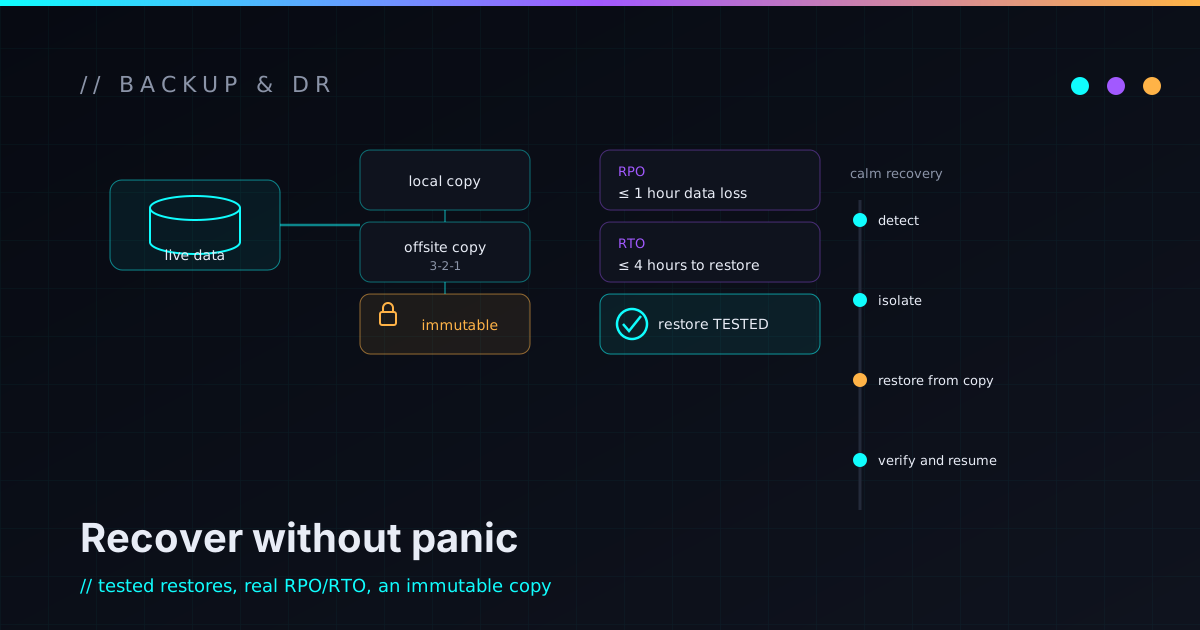
RPO — recovery point objective — is just: how much data can you afford to lose? If a system backs up once a day, a bad day can cost you up to a day of changes. If that’s too much for a given system, it needs more frequent backups.
RTO — recovery time objective — is: how long can this be down before it creates a real problem? A marketing page down for an hour is annoying. A billing or dispatch system down for a day is a different category of bad.
You don’t need the jargon to use the idea. For each important system, ask how much recent work you could stand to recreate and how long it could be unavailable. Those answers tell you how much backup and recovery effort each system actually deserves — which is the whole point, because not everything deserves the same effort.
Start with the systems that keep the business alive
You can’t protect systems you haven’t named, so the foundation of all of this is a plain inventory. List the systems that keep the business running: business email, the domain registrar and DNS, website hosting and contact forms, customer records and CRM, accounting and invoicing, the payment platform, cloud file storage, project management and the support inbox, the password manager, source code repositories and databases, internal tools and automation platforms, vendor portals, the spreadsheets people secretly depend on, and the devices used to run day-to-day operations.
For each one, answer a short set of questions: What does it do, and who owns it? What data does it hold? How is it backed up, and how would we restore it? How long can it be down, and who has admin access? That list is unglamorous, and it’s the single most valuable artifact in this whole exercise.
Decide what to recover first — before the outage
During an incident, you don’t restore everything at once, and deciding the order mid-crisis is the worst time to do it. So decide it on a calm afternoon and write it down.
A practical priority order usually runs: identity and access first, then communication, then customer-impacting systems, then billing and payments, then operational files and data, then the website and lead capture, then internal tools and automations, and finally reporting and the lower-stakes systems. The exact order is business-specific — for some shops email is priority one, for others a dispatch system or production database matters more. The value isn’t in matching my list; it’s in having made the decision while nothing was on fire.
Map where the important data actually lives
Most small businesses are surprised by where their critical data really sits.
Laptops and workstations often hold more than people think. Even when files are “in the cloud,” devices accumulate local documents, exports, SSH keys, browser profiles, and project folders. Worth knowing: which devices hold business data, whether anything important lives only locally, whether disks are encrypted, and what happens the night a laptop goes missing. For some businesses that’s a non-event; for others, one laptop is the secret map to everything — a risk worth shrinking.
Cloud drives and shared folders need structure, not just storage: which folders are genuinely business-critical, who owns them, who has access, what’s shared externally, how long deleted files are retained, and whether encrypted files can be rolled back. Cloud storage drifts into a junk drawer; the job is to find the folders that truly matter and confirm they can actually be restored.
Email is usually a business record, a communication system, and the recovery path for half your other accounts all at once. Know your provider’s retention and deleted-mailbox recovery, your export options, what happens to a former employee’s mailbox, and who can help if the main admin account itself is locked. If email is both critical and the way you’d recover everything else, it deserves more attention than it usually gets.
Don’t forget the website, the SaaS data, and the records
A business website is rarely just “the website.” It’s site files or source code, a CMS database if you run one, uploaded media, form configuration, redirects, DNS records, hosting and environment configuration, and the deployment process that ties it together. Static sites have an edge — the source is usually version-controlled and deploys can roll back — while CMS-driven sites need explicit database and media backups. Either way, the test is whether you can restore the contact form, the database, and the deploy config, not just the homepage.
SaaS tools are where a lot of businesses quietly over-trust. Vendors protect their own infrastructure, but that doesn’t always protect you from a deleted record, a locked account, a canceled subscription, or an admin mistake. For each critical tool, know whether you can export your data, in what format, how often that should happen, and whether the export can actually be re-imported. At minimum, know how to get your data out.
The most sensitive records — accounting, payments, and customer data — deserve care on both sides: make sure you can export invoice history, customer records, and tax documents, and make sure those exports are access-controlled and retained on purpose rather than dumped into a shared folder. The goal is to recover records without widening your exposure while you do it.
And if the business runs on custom software, scripts, or automations, source code and configuration matter as much as data. Know where repositories live, who has access, whether old contractors still do, whether deployment secrets and environment variables are documented, and whether a release can be rolled back. If the code survives but nobody knows how to deploy it, recovery is still painful.
Ransomware-resistant backups, without the fear sales pitch
Ransomware changes the backup conversation for one structural reason: it can encrypt or destroy data that’s online and writable — including backups that are sitting right next to production. You don’t need to be dramatic about it. You need the original data and the backups to not share a blast radius.
In practice that means versioned backups, at least one copy that’s offline or immutable, separate credentials for the backup system, retention long enough to reach a known-clean version, monitoring so a silently failing backup doesn’t surprise you later, and — the part everyone skips — actual restore testing. The principle is simple: the same compromised account or device shouldn’t be able to wipe both the original and every copy of it. This is the same operational-hygiene instinct behind the small business cybersecurity checklist — MFA, least privilege, and tested recovery are the same toolkit pointed at a different failure.
”We have backups” is not the same as “we restored last quarter”
The sentence “we have backups” is a hope. The sentence you actually want is “we restored from backup last quarter and the process worked.” The gap between those two is where bad days live.
Restore testing catches the unglamorous failures: missing files, corrupt archives, wrong retention, credentials nobody has anymore, backups in the wrong account, a database that restored without its media, exports that won’t re-import, and restores that technically work but take far longer than the business can tolerate. You don’t need to test everything constantly — but critical systems deserve a periodic restore test, because a small, deliberate test beats discovering during an emergency that the backup was never useful.
A restore path is a feature you build and verify, not a thing you assume. It’s the same argument I make for automation needing a real rollback and panic button: the recovery path has to be designed and exercised, or it isn’t really there.
Documentation and ownership: the part that fails silently
A backup strategy that lives in one person’s head is fragile no matter how good that person is. For each critical system, the documentation should capture the owner, what data matters, the backup method and frequency, retention, where backups live and who can access them, the restore steps, when it was last restore-tested, its recovery priority, and the manual fallback if it’s down for a while.
One rule: don’t put raw passwords or secrets in general documentation. Use a password manager or proper secret storage, and let the docs point to where recovery information lives and who owns it — without becoming a single file that hands an attacker everything. This is the same idea as treating documentation as infrastructure: a recovery procedure only one person understands isn’t a procedure you actually have.
The practical backup and disaster recovery checklist
A starting point, not a finish line. Work top to bottom; don’t try to clear it in a weekend.
Inventory
- List the critical systems and the data each one holds.
- Identify owners, admin accounts, and vendor support paths.
- Decide and write down recovery priorities.
Backups
- Confirm what’s backed up, how often, and for how long.
- Confirm where backups live and who can access them.
- Confirm backups are protected from the same incident as production.
- Confirm critical SaaS data can be exported.
- Confirm website, database, source code, and configuration are recoverable.
Recovery
- Define what gets restored first.
- Set a rough RPO and RTO for the critical systems.
- Document the restore steps and the manual fallbacks.
- Actually test a restore for your most critical data.
- Confirm the replacement-device and account-recovery paths.
Security
- Enable MFA on the accounts that protect backups and identity.
- Separate production and backup credentials where you can.
- Remove old vendor and employee access.
- Protect backup documentation; keep raw secrets out of it.
- Sanity-check the ransomware blast radius.
Maintenance
- Assign owners by name.
- Schedule restore tests and watch for backup failures.
- Update the docs when systems change.
- Revisit recovery priorities about once a year.
What you can do yourself this week
You don’t need a big project to start. Make a list of your ten most important systems, and for each one answer: where does the data live, is it backed up, how would I restore it, who has access, how long could we survive without it, and what would we do manually in the meantime?
Then test exactly one restore. Pull back a deleted document. Export a customer list and confirm it opens. Roll a website back one version. Download a SaaS export. The first real test teaches you more than a page of assumptions ever will — and it’s usually where the surprises are cheapest to find.
When it’s worth bringing in technical help
Bring in help when the systems are important, messy, or unclear — when nobody can say for sure whether the backups would actually restore, when critical SaaS tools have no export plan, when the website or app has no tested restore path, when backups exist but sit in the same blast radius as production, when the business quietly depends on a few spreadsheets or some custom tooling, or when you want a real disaster-recovery checklist with documentation and ownership attached.
A good backup and disaster-recovery review should leave you with clarity, not panic. It should tell you what matters, what’s protected, what isn’t, what to test, and what to fix first — prioritized by real impact rather than dumped on you as a scary list. That’s the shape of an infrastructure sanity pass: a practical second set of eyes on the DNS, hosting, backups, access, and operational risk you rely on. The kinds of systems behind that thinking live on the work page.
FAQ
What is backup and disaster recovery for a small business?
It’s the work of protecting important business data and planning how to restore systems after a failure — deletion, ransomware, account loss, a vendor problem, or hardware dying. Backups protect the data; disaster recovery defines how the business gets running again, in what order, and who owns each step.
Is cloud sync the same as a backup?
No. Sync keeps files matched across devices, which means it also syncs deletions, corruption, and encrypted files. Backup is built for recovery, with retention, versioning, access control, and a copy the same incident can’t reach. Sync is convenience; backup is recovery.
What should a small business back up?
The data that would be painful or expensive to recreate: customer records, accounting and payment data, important files, websites and their databases, source code and configuration, critical SaaS exports, DNS and domain records, and the documentation that explains how to put it all back.
How often should backups be tested?
Critical systems deserve a periodic restore test — often quarterly, at least annually — scaled to how much the business depends on them. The more important the system, the more the restore test matters, because an untested backup is only a hope.
What is a ransomware-resistant backup?
A backup designed so an attacker or malware can’t easily destroy both the original data and the copies. That usually means immutable or offline copies, separate credentials, version history, sensible retention, and limited access — so one compromised account can’t wipe everything at once.
Does a small business really need a disaster recovery plan?
Yes, even a one-page one. A simple plan records what to restore first, who owns recovery, where the backups live, how to communicate if email is down, and what manual fallback exists — so the first time you make those decisions isn’t in the middle of the failure.
Recovery shouldn’t depend on panic
Backups are supposed to be boring. That’s the point. They should be reliable, documented, and tested before anyone needs them — not improvised while something is on fire.
A small business doesn’t need a giant enterprise recovery program to become genuinely more resilient. It needs to know what matters, back it up, protect the backups, test the restores, document ownership, and decide what comes back first. None of that is dramatic, and all of it works best as part of normal operations rather than a scramble after a bad day.
If you’re not sure your backups would actually save you, that’s a normal place to be — and it’s a fixable one. I help small businesses and technical founders turn backup assumptions into practical recovery plans: reviewing critical systems, testing restore paths, documenting ownership, and shrinking the ransomware blast radius, one useful slice at a time. If you’d like a second set of eyes on yours, reach out and we’ll find the first slice together.