Websites
Slow Website? A Practical Speed Optimization Checklist for Small Businesses
A practical website speed optimization checklist for small businesses covering images, JavaScript, fonts, third-party scripts, Core Web Vitals, hosting, caching, analytics, and maintainability.
- Website Performance
- Speed Optimization
- Core Web Vitals
- Technical SEO
- Small Business
- Consulting
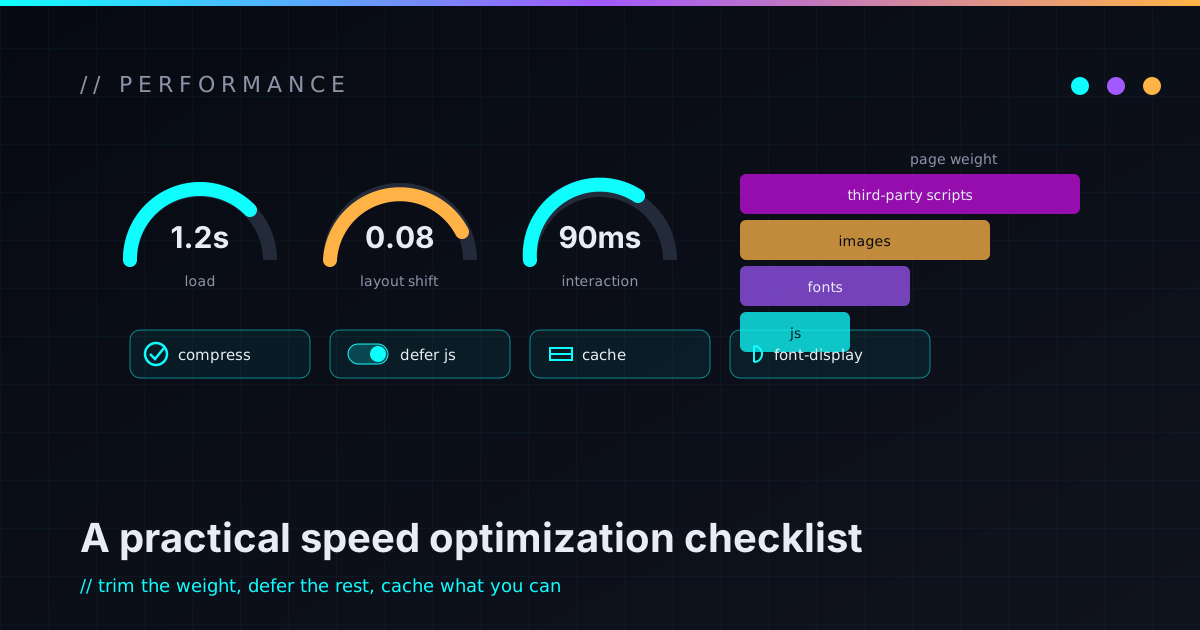
A slow website is more than annoying. It makes a business feel less trustworthy before a visitor reads a word.
People don’t think “this site has render-blocking JavaScript and oversized images.” They think is this broken, do they still exist, why is this taking forever — and then they check someone else. That’s the real cost of a slow site, paid in visitors who leave before they ever see your offer.
Website speed isn’t about chasing a perfect score. It’s about making the site feel fast and easy to act on — so a visitor can find the contact button without waiting through a pile of scripts, giant images, and font drama. Most slow sites are fixable; the trick is diagnosing the real cause instead of installing another optimization plugin and hoping the haunted house gets faster.
Why websites get slow
Sites rarely launch slow. They get slow gradually, one well-meaning addition at a time: a new analytics script, a chat widget, a tracking pixel, a giant hero image, a video embed, a popup tool, a scheduling widget — then a few plugins, and a few more because the first plugins needed help. Eventually the site is heavier than the business it represents.
The usual suspects are oversized images, too much JavaScript, render-blocking CSS, poorly loaded fonts, heavy third-party scripts, slow hosting with no caching, plugin and page-builder bloat, and a pile of embedded maps, videos, and social feeds. A real audit doesn’t start with “install this tool.” It starts with one question: what is actually making this page slow? That drift is also why a site needs ongoing maintenance after launch — weight accumulates whether you watch for it or not.
Scores are useful, but they aren’t the goal
PageSpeed Insights, Lighthouse, WebPageTest, and your browser’s dev tools are all worth using. They’ll surface large images, slow server response, excess JavaScript, render-blocking resources, layout shifts, and slow third-party scripts — a genuinely useful map.
But the score is not the business goal. A page can score badly because of one third-party tool the business actually needs, and a page can score well while still having a confusing layout, a broken form, or a weak call to action. The honest target isn’t “make the number green at all costs.” It’s narrower: the pages that matter load fast, work on mobile, become interactive without jumping around, and keep the contact path intact. Good speed work is diagnosis plus tradeoffs, not a number you bully into the green.
Core Web Vitals in plain English
Core Web Vitals are Google’s user-experience metrics for loading, responsiveness, and visual stability. The names sound harder than the ideas they describe.
- Largest Contentful Paint (LCP) — how quickly the main content shows up. If the hero image or headline takes too long to appear, LCP suffers.
- Interaction to Next Paint (INP) — responsiveness. If the page feels laggy when someone taps, clicks, or types, INP suffers.
- Cumulative Layout Shift (CLS) — visual stability. If buttons, images, or sections jump around while the page loads, CLS suffers.
For a business owner it comes down to one question: does the useful part of the page show up quickly, respond when people interact, and stay still enough to use?
Start with the pages that matter
Don’t optimize random pages first. Start where the business actually lives: the homepage, the contact page, your main service pages, and anything pulling search or ad traffic. A slow privacy-policy page is not the emergency; a slow homepage or a sluggish service page is. Use analytics and Search Console to see which pages people actually visit, then fix those first.
Images are usually the first suspect
Images are the single most common performance problem. A small-business site often has a hero image uploaded straight from a phone — several megabytes when the page needs a compressed, properly sized version. Typical issues: huge files, wrong dimensions, no responsive sizes, PNGs where WebP or AVIF would be far lighter, lazy-loading applied to the above-the-fold hero where it hurts, and missing width/height that makes the layout lurch as images pop in.
A practical cleanup resizes to the largest size actually used, compresses sensibly, serves modern formats and responsive sizes, defers offscreen images, and reserves dimensions to prevent layout shift — images that look good without making the page drag a backpack of bricks.
JavaScript can quietly ruin a simple site
JavaScript is powerful and easy to overuse. Most small-business sites are mostly content — text, images, cards, links, forms — and shouldn’t ship a giant JavaScript payload. The weight usually comes from heavy frameworks on simple pages, page builders loading scripts everywhere, chat widgets, social embeds, animation libraries, sliders, and A/B testing tools.
This matters most on phones, which have far less CPU than a developer’s laptop. A page can download quickly and still feel slow because the browser is busy executing too much JavaScript. The fix is often subtraction: remove scripts, delay non-critical ones, load them only where they’re needed, or swap a heavy widget for something simpler — the fastest code is the code you don’t ship.
CSS and layout still count
CSS slows sites down too, especially when a theme, a framework, several plugins, and a page builder all pile styles on top of each other. Large unused stylesheets, render-blocking styles, plugin CSS loaded site-wide, and deeply nested builder markup all add up — and some of it causes the layout shifts that wreck CLS.
Trim carefully; don’t break the design to claw back a couple of points. But if a simple service page is loading a mountain of styles for features it doesn’t use, that’s worth fixing. A clean, component-based site helps here because each section is built on purpose instead of generated by layers of builder output — the same architectural argument behind choosing a static site over WordPress when the content is mostly marketing and blog posts.
Fonts can be surprisingly expensive
Custom fonts make a site look polished and can quietly hold it hostage — too many
families and weights, blocking text rendering, no fallback strategy, layout
shifts when a web font swaps in, and icon libraries loaded to show three icons.
A sane strategy uses fewer families and weights, preloads only what matters, sets
font-display so text stays visible while fonts load, and leans on system fonts
where it makes sense. Typography matters; it shouldn’t make the page wait.
Third-party scripts are performance gremlins
Third-party scripts are often the hardest problem because they come from outside the site and you don’t fully control them: analytics, tag managers, ad pixels, chat widgets, heatmaps, session replay, social embeds, scheduling widgets, maps, video embeds, and cookie-consent banners. Some are genuinely useful — but each still adds cost, and can block rendering, burn CPU, shift the layout, or fail in ways you can’t fix.
The audit question for every one is blunt: what does this do, and is it worth the performance cost? If the answer is “nobody knows,” disable it until someone can justify it. For the scripts that earn their place, load them carefully — only on the pages that need them, after the main content, or deferred until the user interacts. A heavy embed can often become a static preview that links out.
Tag managers deserve special attention, because they quietly become a junk drawer: every experiment, ad pixel, and retired vendor tag tends to live forever. Audit which tags still fire, which are duplicates, and whether analytics are double-counting. A tag manager isn’t invisible — it’s a code-execution system bolted to your website, and it affects both performance and security.
Hosting, caching, and server response
Sometimes the page is slow before the frontend even starts. Slow hosting, an overloaded server, uncached CMS pages, or poor backend configuration delay the first byte — and that hits dynamic stacks like WordPress and WooCommerce hardest. Worth checking: time to first byte, server-side caching, CDN usage, database performance, compression, and cache headers.
Static sites sidestep much of this. Pages are generated ahead of time and served as files from a CDN, which removes a lot of per-request work. That doesn’t make every static site fast — you can still bolt on giant images and heavy scripts — but for a marketing site of service pages and blog posts, it’s a strong foundation because the performance budget is easier to control. It’s the stack this very site runs on, and a big part of why the work I build leans that way.
WordPress isn’t the villain — implementation is
WordPress can be fast when it’s built and maintained well, and painful when it’s overloaded with plugins, a heavy theme, a page builder, weak hosting, and unoptimized media. The common culprits are too many plugins, slow builders, database bloat, plugin scripts loaded everywhere, WooCommerce overhead on pages that aren’t the store, and an old PHP version.
The answer usually isn’t “abandon WordPress.” More often it’s: remove unused plugins, replace heavy ones, fix caching and hosting, optimize images, and update the runtime. Sometimes moving only the marketing site to static fits the workflow — but that’s a deliberate call, not a reflex. WordPress is a tool; the implementation decides whether it feels fast or haunted.
Mobile is where it matters most
A site that feels fast on a developer’s desktop can still crawl on a phone, where visitors have slower CPUs, weaker networks, and less patience. For most small businesses, mobile matters more than desktop. Check the real thing on a real device: does the hero load quickly, does the menu open fast, does the contact form work, does scrolling stay smooth, and does the layout hold still? That’s usability under real conditions, not just speed.
The practical speed optimization checklist
Use this as a first pass, grouped by where the weight hides.
Images
- Compress large images and use correct dimensions.
- Use WebP or AVIF where appropriate, with responsive sizes.
- Defer offscreen images; never lazy-load the above-the-fold hero.
- Reserve width/height to prevent layout shift.
JavaScript
- Remove unused scripts; delay non-critical ones.
- Load scripts only on the pages that need them.
- Review chat, calendar, map, and social widgets for weight.
- Reduce main-thread blocking; skip heavy libraries for simple effects.
CSS and fonts
- Trim unused CSS; don’t load builder/plugin CSS everywhere.
- Keep layouts stable and animation restrained.
- Reduce font families and weights; set
font-displayand sensible fallbacks. - Avoid full icon fonts for a few icons.
Third-party scripts
- Audit every tag; remove retired vendor tags and duplicates.
- Limit tags to the pages where they’re needed; delay the rest.
- Watch for double-counted analytics.
Hosting and caching
- Use hosting suited to the stack; enable caching and compression.
- Put a CDN in front; review time to first byte and cache headers.
SEO and usability
- Test key landing pages and Core Web Vitals on mobile.
- Confirm forms still work; monitor analytics after changes.
- Don’t break functionality to chase a score.
What you can check yourself
You don’t need to be a developer to catch the obvious problems. Run your homepage through PageSpeed Insights, load the site on your phone over cellular data, and submit the contact form. List every chat, analytics, popup, and embed tool, and ask whether each is still needed. None of this replaces a technical audit, but it surfaces the easy wins fast.
When to bring in technical help
Bring in help when the issue isn’t obvious, the site is business-critical, or a fix could break something — confusing PageSpeed reports, poor Core Web Vitals, a site that’s slow on mobile, plugins fighting each other, conversion tracking that absolutely cannot break, meaningful organic traffic on the line, or a possible move from WordPress to static. It’s the same diagnostic eye as an SEO-safe redesign: knowing which changes are worth the risk and which aren’t.
A good performance consultant explains what matters, what doesn’t, and the tradeoffs — and prioritizes fixes by real impact, not by which warning is loudest. Not every score warning deserves engineering time; the issues hitting real visitors and real leads do.
FAQ
Why is my small business website so slow?
Usually a stack of things: oversized images, too much JavaScript, a heavy theme, too many plugins, slow hosting, third-party scripts, chat widgets, tracking tags, poor caching, or an unoptimized mobile layout. It’s rarely one cause, which is why a quick diagnosis beats randomly installing an optimization plugin.
How do I fix a slow website?
Test your important pages, compress images, remove unused scripts, review third-party tags, improve hosting and caching, check mobile performance, and fix what affects real visitors first. For a complex site, a real performance audit is worth doing before you start making changes.
What are Core Web Vitals?
Metrics that measure loading speed, responsiveness, and visual stability. In plain terms: does the main content appear quickly, does the page respond when you interact with it, and does the layout avoid jumping around while it loads?
Is WordPress bad for website speed?
No. A well-built WordPress site with good hosting, caching, optimized images, limited plugins, and a clean theme can perform well. Slow WordPress sites are almost always an implementation and maintenance problem, not the platform itself.
Are static websites faster than WordPress?
They often have an edge, because pages are generated ahead of time and served from a CDN without database queries or plugin execution on every request. A static site can still be slow if it’s overloaded with images, JavaScript, fonts, or third-party scripts — it’s a better foundation, not a free pass.
Can speed optimization improve SEO?
Speed supports SEO because performance affects user experience and technical quality, but it doesn’t guarantee rankings. A slow site can quietly hurt usability and conversions; treat better ranking as a possible downstream effect, not a promise.
Should I chase a perfect PageSpeed score?
Usually not. A perfect score is nice, but the better goal is a fast, stable, usable site that supports the business. Some scripts or features are worth keeping even if they cost a few points.
Make it feel fast where it matters
A slow website is rarely one problem — it’s a pile of small decisions that added weight over time. Reverse the drift: start with the pages that matter, remove what’s unnecessary, keep the business functionality intact, and test on a real phone. The goal isn’t a trophy score; it’s a site that loads quickly, feels trustworthy, and makes the next step easy.
If your website feels slow, heavy, or overbuilt, that’s a fixable problem. I help small businesses and technical founders diagnose and fix slow websites without turning it into plugin roulette — a practical audit with fixes prioritized by real impact, not a green number for its own sake. You can see how I approach this on the services page; if you want a read on your own site, reach out and we’ll find the first useful slice.