Software Consulting
API Integrations for Small Business: How to Connect the Tools That Run Your Operations
A practical guide to API integrations for small businesses: how to connect SaaS tools, automate workflows, sync data, reduce manual entry, and build maintainable business systems.
- API Integrations
- Small Business
- Workflow Automation
- SaaS Integration
- Systems Integration
- Internal Tools
- Consulting
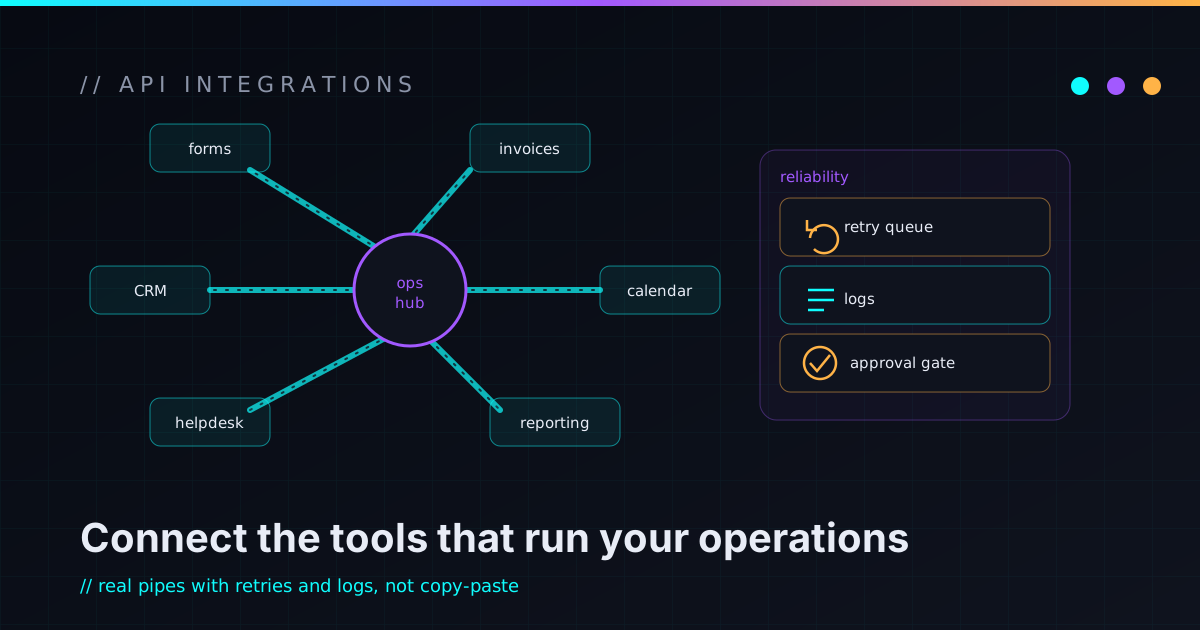
Most small businesses don’t have one system. They have a pile of useful tools that almost work together. The contact form sends an email. The CRM has some of the customer details. A spreadsheet has the real status. The accounting tool has the invoices, the payment platform has the subscriptions, the support inbox has the history, the project board has the tasks — and the owner has the actual context in their head.
None of those tools are bad. The problem is the gaps between them, and the person who spends their week copying data across those gaps by hand. That’s where API integrations earn their keep. An API integration connects systems so data, events, and workflows can move between them without someone manually retyping everything. Done well, integrations cut duplicate entry, improve visibility, speed up follow-up, and make a process more reliable. Done poorly, they become invisible duct tape that silently breaks and nobody wants to touch.
The goal is not to connect everything just because you can. It’s to connect the right systems in a way the business can understand, monitor, and maintain.
What an API integration actually is
An API is a structured way for two software systems to talk to each other. In business terms, an API integration lets one tool ask another tool for information, or tell it to do something — automatically, on a schedule or in response to an event. A website form creates a CRM lead. A payment kicks off an onboarding workflow. A support ticket pulls account details. A scheduling tool updates a project board. A spreadsheet feeds a dashboard. A vendor API refreshes pricing or availability. A customer portal shows status pulled from an internal system.
The API is the doorway. The integration is the workflow you build through that doorway — and that workflow still needs design. “Can we connect Tool A to Tool B?” is only the first question, and usually the least interesting one.
API integrations are really workflow integrations
The most common mistake is treating an integration as a purely technical task. The connection is the easy part now; the hard part is deciding what should actually happen. The better questions are about the workflow itself: What business process are we improving? What starts it? What data needs to move, and in which direction? Which system is the source of truth? What happens if the data is incomplete, or the API is down? Which actions should require a human to approve them? What gets logged, and how do we undo a mistake? And — the one people skip — who owns this after it launches?
The code is a small part of the system. The workflow is the actual product, and it’s worth sketching on paper before anyone writes a line of it. That slice-first, design-first instinct is the same one I bring to the work I take on.
When no-code integrations are enough
Not every integration needs custom software, and pretending otherwise is how small businesses overspend. Tools like Zapier, Make, n8n, Airtable automations, HubSpot workflows, and the automations built into the SaaS you already pay for can be genuinely excellent for simple jobs.
No-code or low-code is usually the right call when the workflow is simple, the tools are already supported, the data mapping is straightforward, mistakes are low-risk and easy to spot, the process can tolerate occasional manual review, and you’re mostly trying to test whether the idea is even worth it. A new form submission that creates a task, a calendar booking that posts to Slack, a new invoice that adds a spreadsheet row, a fresh lead that fires an email alert — these are great first automations, and you do not need an engineer for any of them.
If your situation is closer to “spreadsheets and SaaS almost cover it,” that’s its own conversation, and I dug into where that line sits in internal tools for small business.
When a custom API integration is worth building
Custom work starts to make sense when the workflow becomes important, specific, risky, or hard to model with off-the-shelf tools. The signals are fairly consistent: multiple systems need to stay in sync, the workflow has business-specific rules, data has to be validated carefully, errors need to be retried and logged, or the integration touches customer, billing, or operational data where silent failure is expensive. It’s also a tell when your no-code automations have quietly grown into a chain of hidden steps nobody fully understands, or when the tools simply don’t expose the API behavior you need.
The question isn’t “can Zapier technically do this?” It’s “should a business-critical workflow depend on a chain of steps that nobody can see, test, or debug?” For small workflows, no-code is often perfect. For the workflows that run the business, custom integration buys you control, validation, logging, and clear ownership. That build-versus-buy call deserves real thought, which is the whole subject of custom software vs SaaS for small business.
The source of truth problem
One of the hardest parts of integration work has nothing to do with code: deciding which system owns each piece of data. This is the source of truth, and skipping it is how integrations create chaos instead of removing it.
Is the CRM the authority on contact details, or is the accounting system? Is the payment platform the truth about subscription status? Is the dashboard just displaying data, or is it allowed to change it? Is the spreadsheet still permitted to override anything? What happens when two systems disagree? Without an answer, a customer updates their email in one place, another system keeps the old one, and a nightly sync helpfully overwrites the new address with the stale one. Now nobody knows what’s correct.
A good integration doesn’t just move data around. It protects what the data means — which means deciding, up front, who gets to be right.
Before connecting anything, decide what each system owns. It’s a boring decision that prevents a very exciting class of bugs.
Data sync is harder than the demo makes it look
A clean demo makes syncing two systems look trivial. Real operations are messier, and the mess is where reliability is won or lost. You have to account for duplicate records, missing or invalid fields, mismatched date formats, different customer IDs, deleted and archived records, partial updates, failed API calls, rate limits, conflicting changes, manual edits, delayed webhooks, time zones, and permissions. “Just sync the data” is how a one-afternoon task becomes a real engineering project.
A sync you can actually trust has answered a short list of unglamorous questions before it ships:
- What data moves, and in which direction?
- How often does it sync, and what triggers it?
- How are duplicates detected and resolved?
- What happens on conflict, and what happens on failure?
- Can records be repaired by hand? Can the sync be paused?
- Can a bad batch of changes be rolled back?
The boring questions are where the reliability comes from.
What these integrations look like in practice
API integrations support a lot of ordinary, valuable workflows. Lead intake turns a form or ad lead into a CRM record, a notification to the right person, a follow-up task, and a drafted first reply — with a human approving anything customer-facing before it goes out. Payments and onboarding let a payment event trigger onboarding steps, internal tasks, a status change, and a welcome draft; because it touches money and access, it needs careful handling. Support context pulls a customer’s status, recent orders, and billing history into the support tool so nobody has to check five systems before replying.
On the reporting side, a dashboard can combine CRM, payments, support, analytics, and spreadsheet data into one operational view — especially worth it when someone currently rebuilds that same report by hand every week. Quote and proposal workflows pull customer details, pricing rules, and approval status into a repeatable flow without removing human judgment. And a customer portal can show status, documents, invoices, and next steps from internal systems — though customer-facing tools carry more responsibility, so they should start small. Several of these are really internal tools with an API behind them, which is why integration work and internal tooling tend to show up together.
Authentication, secrets, and permissions
APIs need credentials — API keys, OAuth tokens, service accounts, webhook secrets, signed requests — and those credentials are exactly the thing attackers want. They should never be pasted into random documents, chat messages, AI prompts, or client-side code. A secure integration has clear answers for where secrets live, who can access them, how they’re rotated, what permissions they grant, whether test and production credentials are kept separate, and whether your logs are accidentally printing a key in plain text. It’s also worth knowing whether an old contractor or retired vendor still holds working credentials.
The single most useful principle here is least privilege. If the integration only needs to read customer status, don’t let it delete records. If it only needs one folder, don’t hand it the whole drive. If it only needs to draft emails, don’t let it send them automatically. The smaller the blast radius, the safer the workflow — which is really just system design, the same argument I make in security is architecture, not decoration.
Error handling, retries, and logging
Every integration fails eventually. An API goes down, a token expires, a vendor renames a field, a request times out, a rate limit is hit, a webhook fires twice, a required field comes through blank. Failure isn’t the interesting part — whether the failure is visible and recoverable is. A reliable integration logs its errors clearly, retries the actions that are safe to retry, keeps a queue of failed jobs for the important ones, alerts a human when failures repeat, and uses idempotency so a doubled webhook doesn’t create a doubled charge. It validates before it writes, handles partial failures sanely, and gives someone a manual path to fix what broke.
Logging is what makes the whole thing trustworthy, and it isn’t only for developers. At minimum you want to know what triggered a workflow, what data came in, what system was called, what action was attempted, whether it succeeded or failed, and who approved it if approval was required. For anything sensitive — a status change, a payment flow, a quote going out, access being granted — an audit trail is how the business answers “why did this happen?” later. A bad integration fails silently; a good one tells someone what happened and what needs attention.
Rate limits and vendor API changes
APIs belong to vendors, which means they have limits and they change. A platform might cap how many requests you can make per minute, deprecate an endpoint, alter authentication, add pagination, or quietly change webhook behavior. A maintainable integration plans for this: it respects rate limits, pins or tracks API versions, watches for deprecation notices, handles error codes and pagination gracefully, and keeps sandbox and production environments separate. This is one more reason an integration is never truly “done” at launch — it needs someone watching for the changes the vendor will inevitably make.
Documentation and maintenance
Every integration important enough to run part of the business is important enough to write down. The document doesn’t need to be long — a single page that explains what the integration does, which workflow it supports, what triggers it, which systems it reads and writes, where the credentials and logs live, what the common errors mean, how to pause and test it, who owns it, and what shouldn’t be changed casually. That’s not bureaucracy; it’s the difference between a maintainable system and another mystery machine that everyone is afraid of. I make the fuller case for treating this as part of the build, not an afterthought, in documentation is infrastructure.
A practical integration planning checklist
Before building anything, it’s worth answering these out loud. They’re cheaper to answer now than to discover in production.
Workflow: What process are we improving? What starts it, and what should happen next? What should stay manual? Which actions are genuinely risky?
Systems: Which tools are involved? Which one is the source of truth? Which can read, which can write, and is there a sandbox to test against?
Data: What fields move, and which are required? How are duplicates and missing data handled? What happens when two systems disagree?
Security: What credentials are needed and where are they stored? Can permissions be scoped down? Does this touch sensitive data, and who can read the logs?
Reliability: What happens if the API is down? Should failed actions retry? How are failures reported, and can a bad change be rolled back? How do we test it safely?
Maintenance: Who owns it? Where does it live, where are the logs, and how do we find out when the vendor changes something?
If that list feels tedious, good. Tedious-up-front is the whole point.
What you can do before bringing in help
You can prepare a lot of this yourself, and doing so makes any engagement faster and cheaper. Make a list of the tools your business runs on and the data each one holds. Note where duplicate entry happens, which reports are built by hand, which workflows depend on copy-paste, and which tools regularly disagree with each other. Then pick the workflow that breaks most often or wastes the most time — and pick exactly one, not ten. The first integration should prove value and teach you how your systems actually behave under load. Everything else can wait for the second one.
When the workflow is important, touches multiple systems, handles sensitive data, or simply has to be reliable, that’s the point to bring in technical help — whether that’s untangling a pile of fragile automations, building a dashboard with real validation, or just deciding between SaaS, no-code, and custom code. A good integration consultant shouldn’t wire everything together blindly. They should help you design the workflow, reduce the risk, and build only the glue that genuinely needs to exist. That’s much closer to the role of a fractional CTO or hands-on technical consultant than a big agency, and it’s the same human-in-the-loop, build-the-smallest-safe-version approach I use in the AI Automation Lab and wrote up in AI automation for small business.
FAQ
What is an API integration for small business?
An API integration connects two or more software systems so they can share data or trigger workflows automatically. For small businesses, that usually means connecting forms, CRMs, payment tools, accounting platforms, dashboards, support desks, spreadsheets, and internal systems so information moves on its own instead of by copy-paste.
Do I need a custom API integration or is Zapier enough?
Use Zapier, Make, n8n, or built-in SaaS automations when the workflow is simple and low-risk. Consider a custom API integration when the workflow needs stronger validation, logging, error handling, security, approval steps, or business-specific logic that no-code tools can’t model cleanly.
What business tools can be integrated?
Common ones include CRMs, website forms, email, Stripe, QuickBooks, Xero, HubSpot, Airtable, Google Sheets, Slack, Notion, project management tools, support desks, analytics platforms, customer portals, and custom internal systems — as long as the tool exposes an API or webhook.
Are API integrations secure?
They can be, when they’re designed carefully. Use least-privilege permissions, store secrets safely, keep test and production credentials separate, avoid leaking sensitive data into logs, and make sure someone owns the integration and can rotate access when people leave.
What happens if an API integration fails?
A well-built integration logs the failure, retries the actions that are safe to retry, alerts the right person when failures repeat, and provides a manual way to fix what broke. A fragile one fails silently and leaves the business guessing.
Can API integrations replace manual data entry?
Often, yes — especially when the same data is moved between systems repeatedly. The best integrations still keep a human in the loop wherever a mistake would be costly, letting the integration prepare the work and a person approve what matters.
Connect the workflow, not just the tools
API integrations aren’t magic. They’re plumbing for business workflows. Done well, they make your systems work together, cut duplicate entry, improve visibility, and let the business move with less friction. Done poorly, they create hidden dependencies that break quietly and cost you trust. The difference is design: know the workflow, choose the source of truth, scope the permissions, handle the errors, log what matters, document what exists, and start with one useful integration — made reliable before you add the next.
Small businesses don’t need every tool wired to every other tool. They need the right systems connected in the right places, with enough structure that the workflow becomes something you can trust.
If your business is running on copy-paste, CSV exports, disconnected SaaS tools, and automations nobody wants to touch, I help small businesses and technical founders connect the tools that run their operations — practical API integrations, workflow automation, dashboards, and maintainable system design. If you want help mapping the first useful integration, reach out and I’ll help you decide what to connect, automate, buy, or build.